Step 1: Sign In
Step 2: Add Tickets to Your Cart
Select your seats for any eligible event and ticket type then proceed to checkout.
Step 3: Locate Vouchers In Checkout
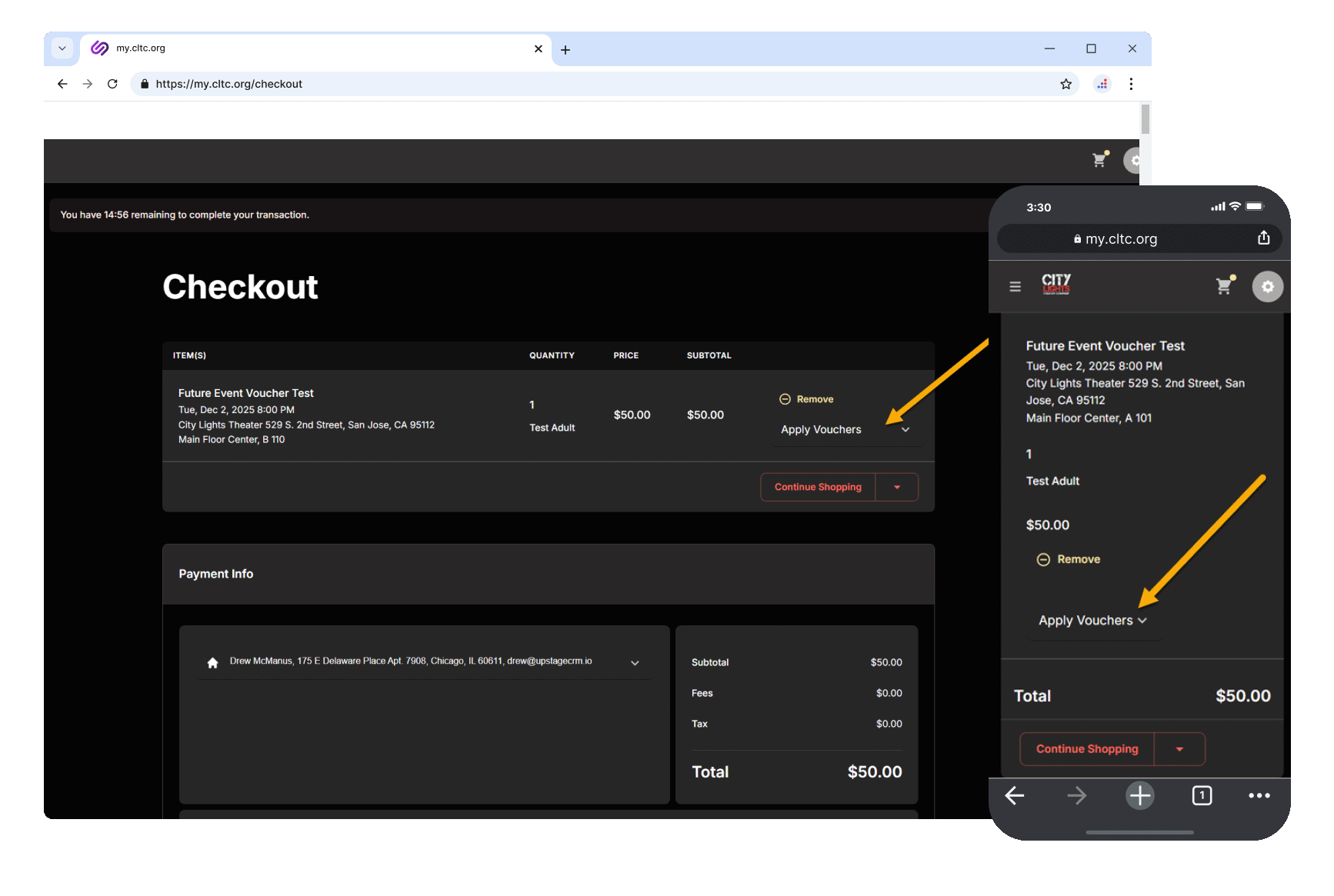
At checkout, locate the “Apply Vouchers” dropdown next to your ticket. Click/tap to expand it and you’ll see how many vouchers are available in your account.
Note: Vouchers automatically appear as an option for all eligible tickets. If you don’t see the “Apply Vouchers” option, the event and/or ticket type may not be included in your Season Pass benefits. Please contact us if you require assistance.
Step 4: Apply Your Vouchers
Click/tap the “Apply” button to redeem a voucher for that ticket. You can apply one voucher per reserved seat ticket.

Step 5: Review and Complete
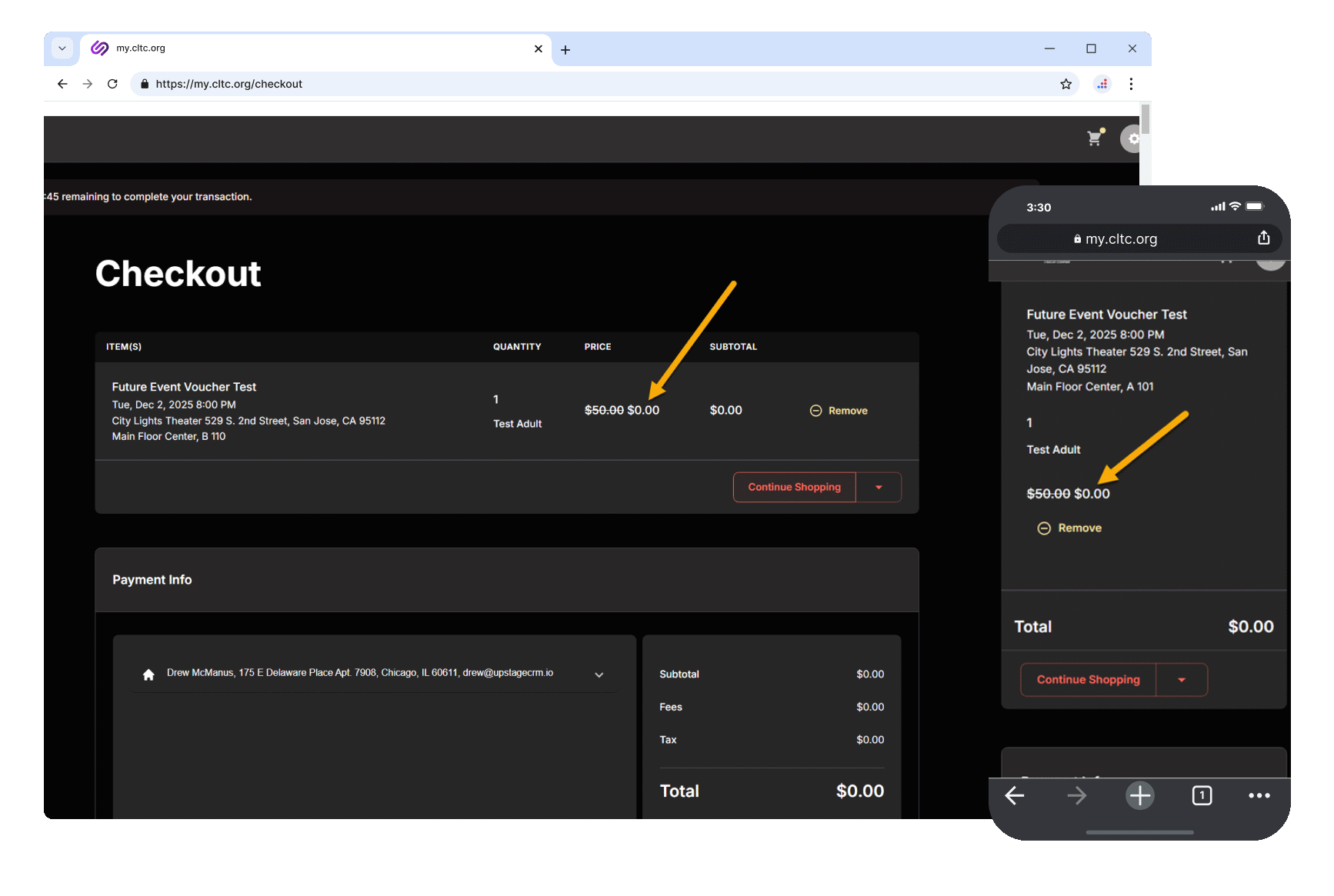
Once applied, the ticket price will update to $0.00 (the original price will appear struck through). Your subtotal will reflect the discount.
Scroll down the page, then click/tap “Complete Order” button to finalize your purchase. Your vouchers will be deducted from your account and your tickets will be confirmed.
Checking Your Voucher Balance
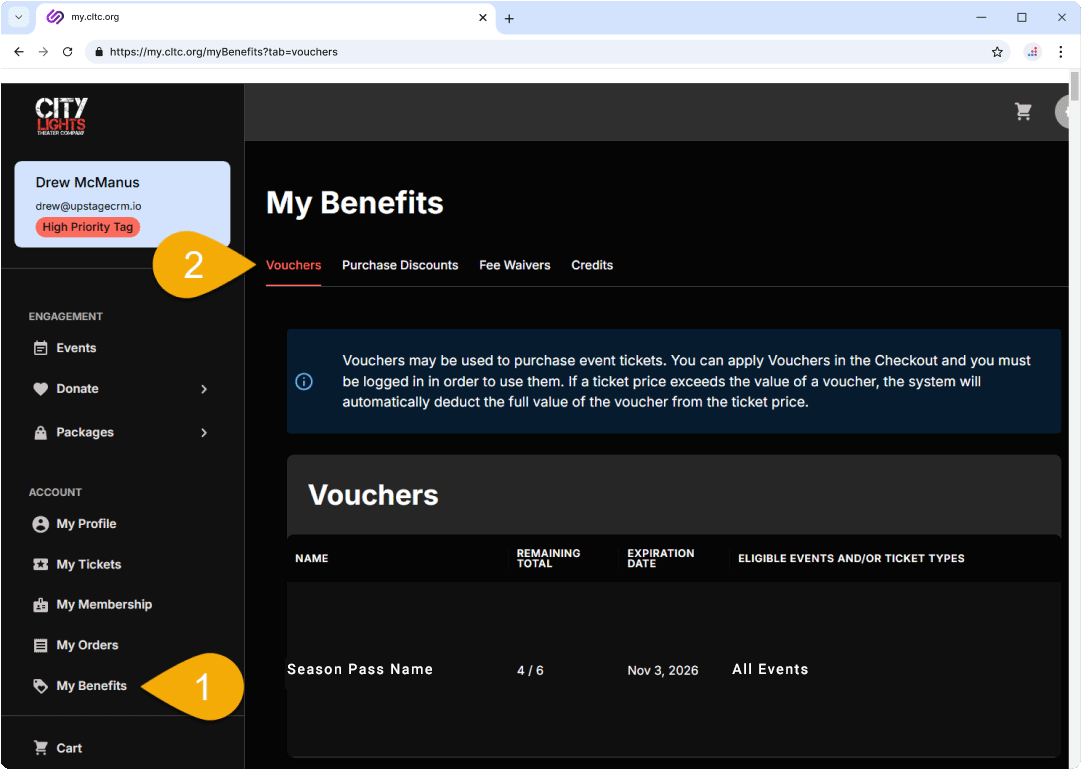
You can view how many vouchers you have remaining at any time by signing into your account at my.cltc.org and navigating to “My Benefits.” Select the “Vouchers” tab to see your remaining total and expiration date for each Season Pass voucher.